Deals
A deal is a sale you are working on: who it is with, what it is worth, how far along it is and when you expect to close it. Deals bring together the contacts involved, the company buying, the products being sold and everything that happens along the way, such as notes, tasks, calls, events, documents, quotes and invoices.

Deal Fields
Every deal has a Title, which is the only field you must fill in. The other standard fields are:
- Amount: what the deal is worth.
- Stage: how far along the deal is. Out of the box the stages are Prospect, Qualify, Research, Quote, Negotiate, Won and Lost.
- Close Date: when you expect to close the deal.
- Probability: how likely the deal is to close, as a percentage from 0 to 100.
- Company: the company the deal is with.
- Contacts: the people involved. See Deal Contacts.
- Products: what is being sold. See Deal Products.
- Assigned To, Status, Type, Source, Next Steps, Commission, Tags and Description.
- Closed and Actual Close Date: see Closing a Deal.
Like every record in FreeCRM, deals are built from a data template. You can rename fields, change the options in a dropdown (the list of stages, for example), make fields required, and add fields of your own.
Creating a Deal
Go to Deals in the main menu and click Create. Fill in the title and any other details, and save. You can also add contacts and products straight away, or add them later from the deal page.

The Deal Page
Open a deal to see its details on one side and its related records in tabs: Notes, Contacts, Events, Quotes, Invoices, Products, Tasks, Cases, Calls and Documents.
The toolbar at the top lets you edit the deal, close it, create a quote or an invoice, set an alert, add an event or a note, pin the deal, see its audit history, or delete it. Use the arrows to step to the next or previous deal in your list.

Deal Contacts
A deal can involve several people: a decision maker, a technical buyer, someone in procurement. Add them on the deal’s Contacts tab: click Add contact, search for the contact and click Add. The table shows each contact’s company, phone and email.
Contact Stages
Each contact on a deal has a stage of their own, separate from the deal’s stage. This lets you track where you are with each person. For example, the deal may be at Negotiate while one contact is still at Qualify.
To set a contact’s stage, click their stage badge (or click to set stage) and pick one from the list.

The list of contact stages is set for the whole account in Settings → Configuration → Deal stages. There you can rename stages, drag them into a different order, add new ones and remove ones you don’t use. At least one stage is needed. This page only changes the stages contacts move through on a deal. To change the deal’s own Stage options, edit the Stage field in Settings → Configuration → Fields.
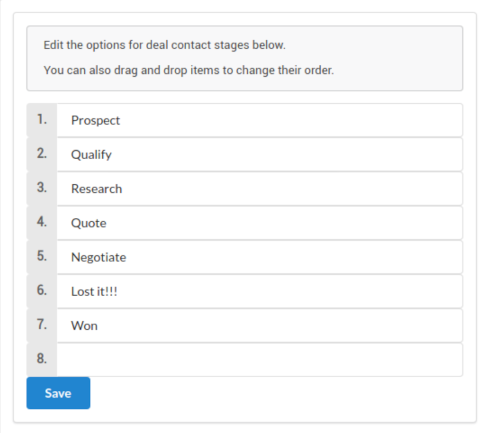
You need the Meta Manager security group to change the configuration pages.
Deal Products
The Products tab lists what the deal is selling. Click Add product, search for a product and click Add. Each product is added with a quantity of 1, priced at its Sale Price.
Click the Quantity or Value cell of a line to change it. Value is the price for this deal, so you can sell below or above the catalogue price without changing the product. Total value is the quantity times the value, and the footer adds up every line. The table also shows each product’s current List price and Sale price for reference.

The deal’s Amount is not changed automatically when you add or change products. Click Update deal amount to set it to the products’ total. You can still change the amount by hand afterwards.
Closing a Deal
Click Close deal on the deal page when the deal is done, whether it was won or lost. This ticks Closed and sets Actual Close Date to now. If you reopen the deal by unticking Closed, the actual close date is cleared.
Closing a deal does not change its stage. Set the stage to Won or Lost as well, so your reports and board show the outcome.
The Deals List
The Deals list supports everything other lists do: filters and saved views, choosing columns, bulk actions and exporting. Above the list, a summary strip adds up the deals that match the current filter across all pages, not only the page on screen:
- Total amount: the sum of the deals’ amounts.
- List price, Wholesale price and Cost: the catalogue prices of the products on those deals.
- Deals: how many deals match.
If you have an active sales target, its progress is shown first.

Board View
Switch the list to the board view to see your deals as cards in columns, one column per stage. Drag a card to another column to move the deal to that stage. You can group the board by any dropdown field instead of the stage. The board shows every deal matching your current filter, up to 500.
Pipelines
A pipeline is a saved report that shows how your deals add up. Click Pipeline above the Deals list, choose one or two fields to group by (for example Stage, or Stage then Type), give the pipeline a name, and tick Save filter to keep the current filter with it.
The pipeline page shows the total amount and number of deals in each group as a chart. Other tabs break the same deals down by product, and by created and close date per week, month and quarter.

Your saved pipelines are listed for you to open again or delete. Each person sees only the pipelines they created.
Sales Targets
Sales targets set a goal for a period and track progress towards it, either as a number of deals or as their total value. Go to Deals → Manage targets to add one.
- Period: this year, quarter, month or week, or Custom dates with a start and end date of your choosing.
- Goal: the number of deals or the value to reach.
- Users: whose deals count. Leave it empty to count everyone’s.
- Recurring: start a new target for the next period once this one is reached. Custom date ranges cannot recur.

The type and period of a target cannot be changed after it is created. Creating and editing targets needs the permission to create sales targets.