Telephony in FreeCRM
FreeCRM’s in-built telephony feature brings your phone communication right to your browser, enabling a seamless and efficient communication experience.
Purchasing a Phone Number
FreeCRM allows you to purchase a phone number within your country. Once you’ve done this, you can use the number to make and receive phone calls directly within your browser.
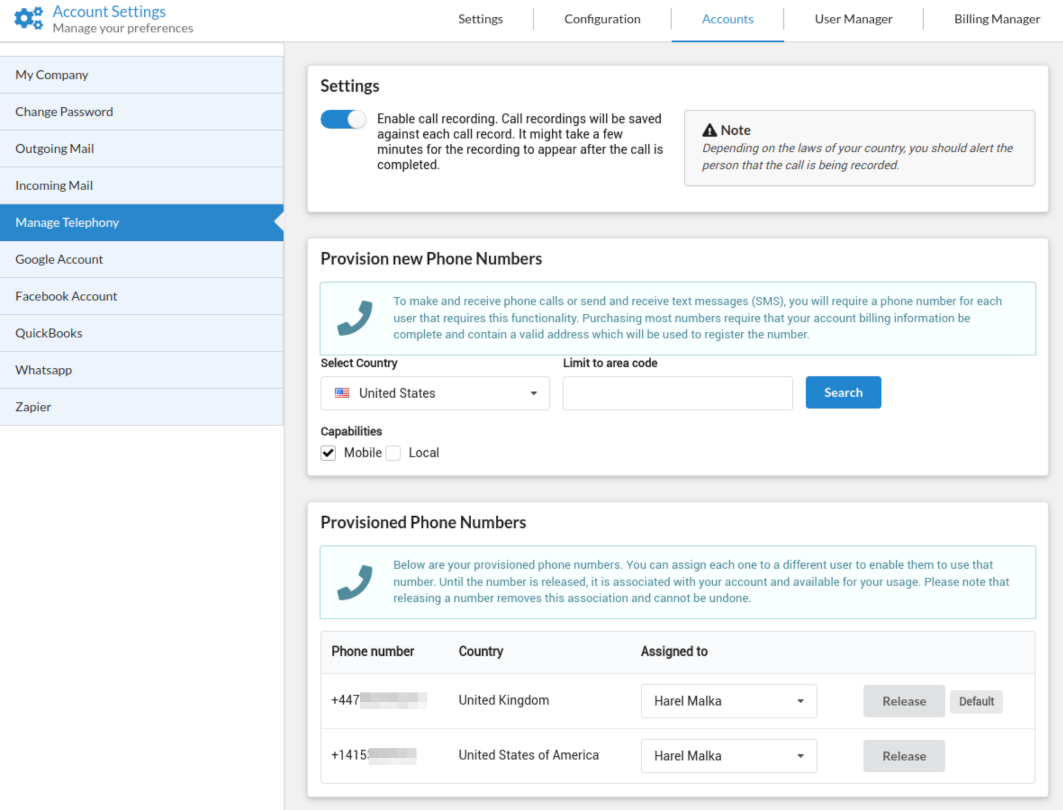
New UK numbers can only be bought once you have registered your details; numbers you already own keep working. See UK Number Registration.
Buying and releasing numbers is available on paid plans to users with the Telephony Manager role.
Calls from US numbers can be labelled “Spam Likely” by the other person’s carrier. To make that less likely, register your US numbers for free under Spam Protection.
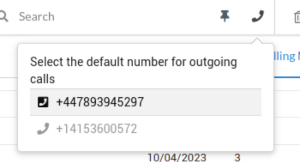
If you need more than one phone number, you can purchase multiple numbers. A selector appears at the top of the screen allowing you to choose your currently active number for outgoing calls.
Making and Receiving Calls
Once your telephony setup is complete, you can call any contact with a valid phone number by clicking the phone number or the phone icon. If you have multiple numbers, the phone icon will let you select which number to use.
All calls can be recorded and saved against their respective records for future reference. Please note, call recordings may take a moment or two to become available after the call ends.
Who You Are Talking To
The call’s page has a tab for each person on the call, next to Notes. It shows the contact’s details and, beside or below them, the details of the company they belong to, so both are in front of you while you talk. A call to a company’s number shows the company alone. When you start a call, the tab opens by itself.
Every field on these cards can be changed in place: click it, as you would on the contact’s or company’s own page. The two icons at the top of a card open the full record and its edit form.

To work through a list of contacts one call after another, use the Power Dialer.
Routing Incoming Calls
By default a call to one of your numbers rings in FreeCRM, in the browser of the person the number is assigned to. To change that, go to Settings > Telephony > Numbers, click Configure on the number and choose where to Route incoming calls to:
- Another of your numbers: the call rings in FreeCRM for the person that number is assigned to.
- Another phone number (mobile, office line): the call rings a phone outside FreeCRM. Enter the number with its country code, or click Use my profile number to fill in the phone number from your profile.
Calls routed to an outside number are still recorded and saved against the contact like any other call. The person answering sees your FreeCRM number as the caller, so they know it is a business call.
A few things to know about routing to an outside number:
- The routed part of the call is charged like an outgoing call to that number. Check the price under Call Rates.
- Calls are only routed while you have a positive telephony balance. If the balance runs out, calls ring in FreeCRM again.
- If you have set business hours on the number, calls outside those hours are not routed.
- If the call isn’t answered, the number’s “when a call is not answered” setting applies as usual.
- Premium-rate numbers can’t be used.
- Only the person the number is assigned to, or a Telephony Manager, can route a number’s calls to an outside number.
Sending SMS and Using in Campaigns
If you purchase a mobile number, you gain the additional ability to send SMS messages directly from the CRM. This capability also extends to your campaigns, allowing you to include SMS communication in your marketing strategy.
Receiving Texts
Texts sent to your number are matched to your records by the sender’s phone number, and appear on the record’s Texts tab, in Messages, and on the dashboard. Contacts and companies both have a Texts tab. If the sender’s number is on more than one record, for example a company’s main line that is also saved on one of its contacts, each record gets its own copy of the text.
When a contact replies STOP, FreeCRM marks them as do not text. Companies have no such setting, so a STOP from a company’s number is kept like any other text.
Call Rates
To see what a call will cost before you make it, go to Settings > Telephony > Call Rates. Choose one of your numbers (or, if you don’t have one yet, the country you would call from) and the country you want to call. The page shows the price per minute for each type of number there (landline, mobile, toll-free and so on) and an estimate for a call of the length you enter.
The rates include everything you pay for a call made from FreeCRM, including the connection from your browser. They are shown in US dollars. The price can depend on the number you call from as well as the one you call: for example, calling within the same country is often cheaper.
Call Rates is available on every plan, so you can check prices before getting a number.

Charges and Telephony Balance
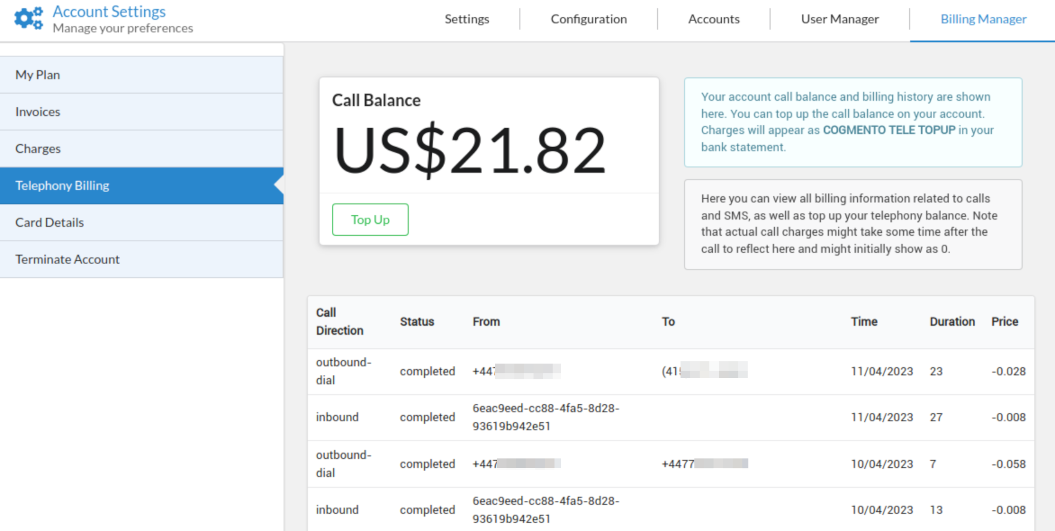
Phone calls and SMS messages incur charges per call or message. You can make calls and send SMS as long as you have a sufficient telephony balance. Your balance will update as you make more calls or send more messages, allowing you to track your usage and costs.
You can track the cost of each call made through the system. To do this, navigate to the Billing Manager, which is located under the Settings section of FreeCRM. Here, you can see a detailed breakdown of the cost for each call you’ve made, helping you manage your telephony expenses more effectively.
Telephony Indicator and Dial Pad
When you’re using the telephony feature, an indicator at the top header of the screen shows the current status of the telephony system. When a call is active, a dial pad is available for you to use if you need to send any digits to the other participant during the call.
