Spam Protection
Calls from a business number can show up on the other person’s phone as “Spam Likely”, even when they are perfectly legitimate. This happens because US carriers run every call through analytics that look at how a number is used. When those analytics know nothing about a number, they have to guess.
Spam protection registers your US numbers with the call analytics used by T-Mobile, Verizon and AT&T. Once your business and numbers are registered, the carriers know who is calling, so your calls are less likely to be labelled as spam.
Spam protection is free. It covers US local and mobile numbers; toll-free numbers are not included yet.
It is available on paid plans to users with the Telephony Manager role. Go to Settings > Telephony > Spam Protection.
Before you start
You need:
- at least one US local or mobile number in FreeCRM (buying a number),
- a registered business with a US tax ID (EIN). Sole proprietors cannot register for spam protection.
Step 1: Business details
First, tell us about your business. These details are checked against public records, so they must match your official registration exactly: the legal business name, entity type, EIN, registered address and an authorised representative.
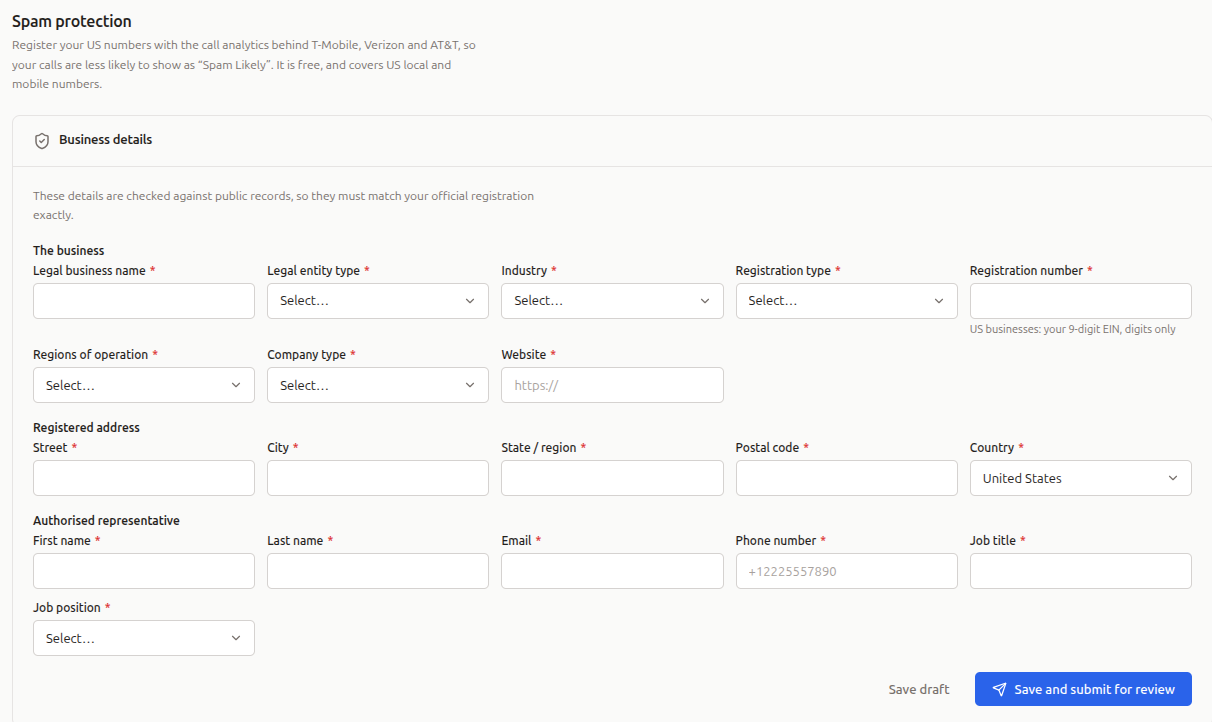
These are the same business details used to register for US text messaging (A2P 10DLC). If you have already registered for messaging, they are filled in and you can go straight to the next step. If not, filling them in here does not register you for messaging. You can do that separately later, without entering your details again.
Click Save draft to come back later, or Save and submit for review when you are ready. Business details are usually approved within one to two business days.
Step 2: About your calls
Next, tell the reviewers how you use your numbers:
- What do you call people about? The main reason for your calls, such as customer support, lead generation or appointment reminders.
- Number of employees.
- Calls on a typical business day: an estimate across all your US numbers.
- Anything else the reviewers should know (optional).
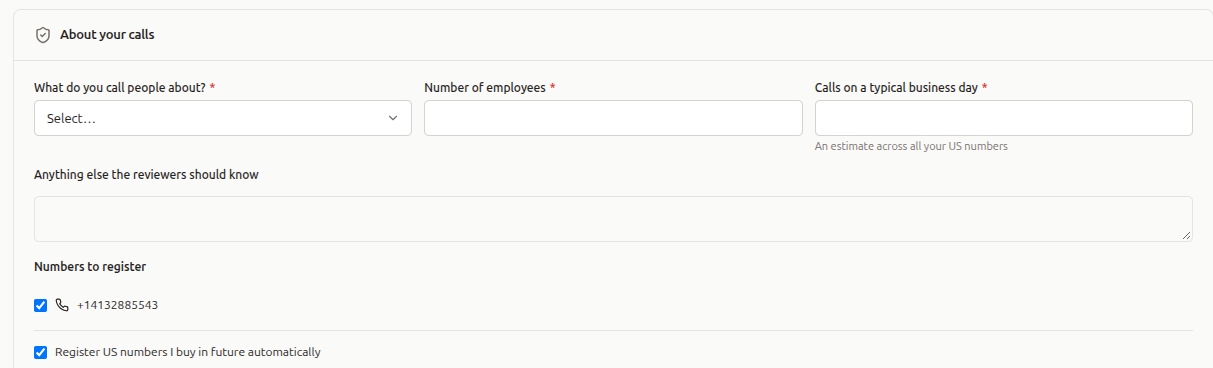
Under Numbers to register, tick the numbers you want to include. All your US local and mobile numbers are ticked to begin with.
Then click Save and submit for review. You do not have to wait for your business details to be approved first. If they are still in review, your registration is held and sent on automatically as soon as they are approved.
Review and status
The review usually takes one to two business days. FreeCRM checks on it regularly and sends you a notification in the app when it is done. You can also click Refresh on the Spam Protection page to check right away.
The page shows where your registration stands:
- Not submitted: saved as a draft.
- In review: with the reviewers.
- Registered: your numbers are registered.
- Action needed: something was not accepted. The reviewers’ feedback is shown on the page. Correct your details and click Save and resubmit.
Once your answers are with the reviewers or approved, they are locked. You can still change which numbers are included.
On Settings > Telephony > Numbers, each number in the registration shows a Spam protected or Spam protection pending badge.
New and released numbers
Register US numbers I buy in future automatically is on by default. With it on, every US local or mobile number you buy is added to your registration. Untick it if you would rather add numbers yourself.
If you untick a number under Numbers to register, it is removed from the registration. It is not added back automatically, even with automatic registration on. Tick it again to add it back.
When you release a number, it is removed from the registration.
What spam protection can and cannot do
Registering tells the carriers who is calling, which makes a “Spam Likely” label much less likely. It cannot rule one out completely. How a number is used still counts: lots of short, unanswered calls to people who don’t know you can still get a registered number labelled.