FreeCRM
Documentation
AI in FreeCRM
FreeCRM can use a large language model to help with the writing and thinking that surrounds your records: what to do next with a relationship, how to word an email, and what to say on a call.
Everything the AI produces is grounded in your own CRM data. Before each request FreeCRM assembles a complete, readable summary of the record in question — the fields from your own templates, with your own labels, plus the related deals, cases, tasks, invoices, notes and the recent history of emails, calls, SMS, WhatsApp messages and meetings — and gives that to the model along with a description of your business. The model is told, in every case, to use only what it has been shown and not to invent facts, prices or commitments.
The AI features are assistive, not automatic. With one exception (the conversational agent, described at the end of this page) nothing is generated until you ask for it, and nothing is sent to a customer until you have read it and pressed send.
Setting Up
AI is switched on by supplying your own model provider API key. Go to Settings → AI Configuration.
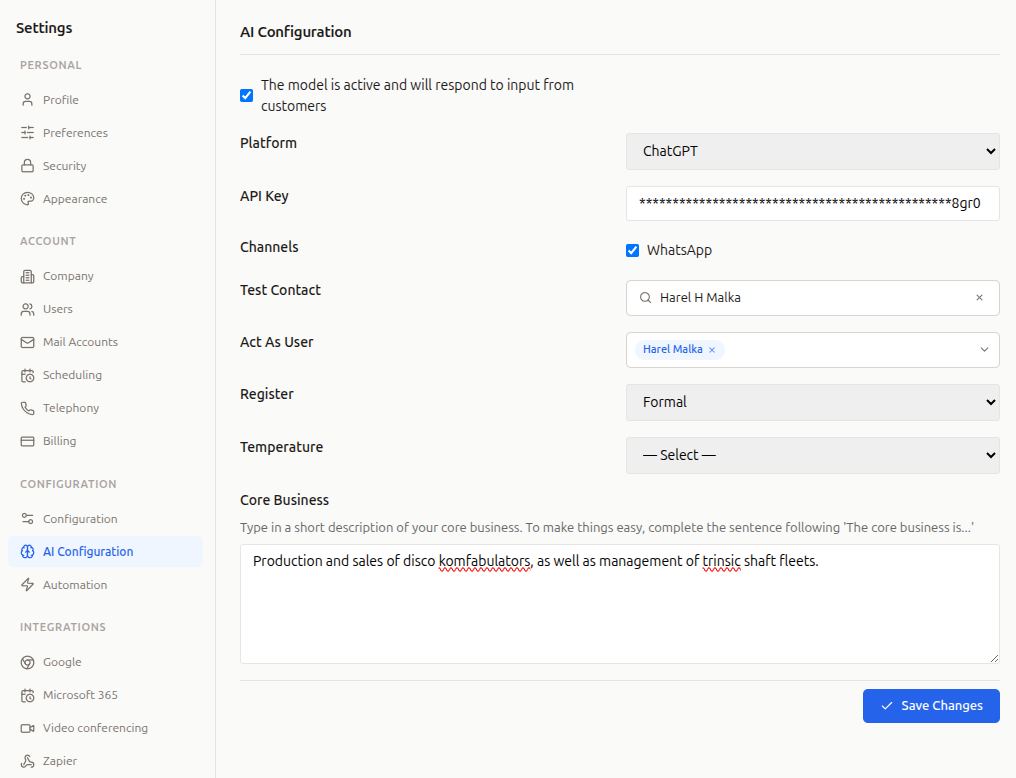
- Platform: which provider your API key belongs to. ChatGPT (OpenAI) is selectable on the settings screen; Claude (Anthropic) is also supported and can be set through the API.
- API Key: your key from that provider. Once saved it is stored securely and only ever shown back to you masked, as
********abcd. - Register: Casual or Formal. Sets the tone of anything the AI writes for you — emails, call scripts and chat replies.
- Temperature: how much the model is allowed to vary its wording, from
0.1(predictable and repetitive) to1.0(loose and creative).0.7is a reasonable starting point; drop it if you want the output to stay close to the facts. - Core Business: a short description of what your company does. This is included in every request, and it is the single most effective setting for improving the quality of suggestions. Complete the sentence “The core business is…“.
- Act As User: the person the conversational agent speaks as. See Conversations on WhatsApp.
- Channels and Test Contact and The model is active…: all three relate to the conversational agent only, and are covered in that section.
Your products and services are picked up automatically from your Products records, including list prices where you have set them, so the AI can talk about what you actually sell.
Once an API key is saved, the AI features described below appear throughout the app for everyone in your account. Until then they stay hidden.
A note on cost: the key is yours, so your model provider bills you directly for usage. FreeCRM does not add a charge or a quota on top. Each suggestion is a single request; the amount of data sent scales with how much history a record has.
Suggesting Next Steps
Open a contact and click the sparkles icon in the toolbar.
FreeCRM reads the whole relationship — open deals, cases and tasks, how recently you have been in touch, the tone of recent messages, anything overdue or gone quiet — and comes back with a short summary and three to five concrete next steps, ordered by priority.
Each step tells you three things: the action as one short instruction, the reason, which cites the specific data that prompted it, and the channel to use — email, call, SMS, WhatsApp, a meeting or a task. Each is also tagged high, medium or low priority.
The value is in the reason: a suggestion like “Reply to the pricing question from Tuesday’s email” points at something real in the record, which is why the model is explicitly steered away from generic advice like “keep in touch”. If a suggestion’s reason doesn’t match anything you recognise, treat the suggestion with suspicion.
Refresh asks again from scratch. Suggestions are not saved — this is a read of the record as it stands right now, so it will change as the relationship does.
Drafting an Email
In the email composer, click AI draft.
The button becomes available once the message has something to work from: either a recipient who is a contact in your CRM, or an email you are replying to. It fills in both the subject and the body, replacing whatever is there.
There are two modes, chosen automatically:
- Replying. The thread you are replying to is read along with the contact’s record, and the draft answers it directly.
- Writing fresh. With no thread to work from, the draft is pitched at wherever the relationship currently stands according to the CRM record.
The result is written in your voice and signed off with your name — never as an AI assistant — in short paragraphs and simple formatting. If you have typed a subject before pressing the button, it is used as a steer for what the email should be about.
The draft lands in the editor as ordinary content. Read it, change what you want, and send it yourself. Nothing goes out on its own.
Suggesting a Call Script
Open a call and click the sparkles icon in the toolbar.
This one is for preparation, so it appears only on calls that haven’t happened yet — a call you have just logged for later, or one scheduled in the future. Once a call has been placed or completed the button disappears, because a script for a finished call is advice after the fact.
FreeCRM reads the call itself — when it is scheduled, who is on it, the purpose you noted in the description, any linked deal, case or task, and the call script form attached to it if there is one — together with the full CRM record of each participant. It returns:
- An objective: one sentence naming what this call needs to achieve.
- A script in five parts: Opening, Talking points, Questions to ask, Likely objections and Close. The opening is written as words to say; the rest are bullets short enough to glance at while you are talking. Each likely objection comes paired with a response.
Where the contact’s record is thin, the model is told to say so in the objective and fall back to discovery questions, rather than inventing a history that isn’t there.
Save as note stores the script on the call as a note, formatted and ready to read while you dial. Refresh generates a different take.
Conversations on WhatsApp
This is the one AI feature that acts without being asked, and it is off until you deliberately turn it on.
When enabled, inbound WhatsApp messages from a contact are answered automatically. The agent speaks as the user chosen in Act As User, with that person’s name, and works from the same CRM record card as everything else on this page. It is instructed never to reveal that it is an AI, never to state figures or make commitments that aren’t in the record, and not to ask for a phone number or email address it can already see.
It can also do two things to your data during a conversation:
- Record a name. If the contact’s record has no real name on it — a WhatsApp contact often arrives as just a number — the agent asks, and writes the answer to the contact record.
- Book time. If the contact asks for a call back or a meeting and gives their availability, the agent creates the event on the calendar. Where the contact’s record has a timezone, the times they mention are read in that timezone.
To turn it on you need all three of these:
- Channels → WhatsApp ticked.
- The model is active and will respond to input from customers ticked.
- WhatsApp itself configured for your account.
Start with a Test Contact. Setting a Test Contact restricts the agent to that one contact and no other — everyone else’s messages are handled exactly as they were before, with no AI reply. Use it to hold a few conversations with yourself and check the tone, the accuracy and what the agent is willing to say, before letting it answer real customers. Clear the field when you are satisfied.
Each contact has one continuous conversation with the agent, so it remembers what has already been said rather than starting fresh on every message.
What the AI Can and Cannot See
Everything sent to the model comes from a single account — your own. Records belonging to other FreeCRM accounts are never included, and the AI has no access to anything outside the record you are working on and its related data.
Within your account, the record card is thorough: it covers the fields on your templates, contact channels and addresses, linked companies, deals, cases, tasks and invoices, notes, and the most recent items of each kind of communication history. If there are fields you would rather not send to an external provider at all, they can be excluded from the cards; this is configured through the API rather than the settings screen — contact support if you need it.
Advanced Settings
A few options are available through the API but not yet on the settings screen:
- Extra context: free-text instructions appended to every request, for house style or rules the model should always follow.
- Model: pin a specific model from your provider rather than accepting the default.
- Excluded fields: keep named fields out of the record cards, per record type or across all of them.
See the API documentation for details.
Good Practice
- Read everything before it goes out. The suggestions are drafts. The model is constrained to your data and told not to invent, but the responsibility for what reaches a customer stays with you.
- Fill in Core Business properly. Two or three accurate sentences here improve every suggestion on this page more than any other setting.
- Keep your records clean. The AI is only as good as the record it reads. Notes, logged calls and up-to-date deal stages make the difference between a suggestion that lands and one that reads like a guess.
- Lower the temperature if suggestions drift. If the AI is being too inventive,
0.2–0.4keeps it closer to the record.