FreeCRM
Documentation
Email Template Library
The email template library gives your emails a professional, branded look without any design work. Pick a ready-made layout for your industry and FreeCRM puts your message inside it: a header with your company logo, a photo, a call-to-action button, and a footer with your address, contact details and small print.
You only write the message. The layout takes care of the rest, and fills itself in from your company profile.
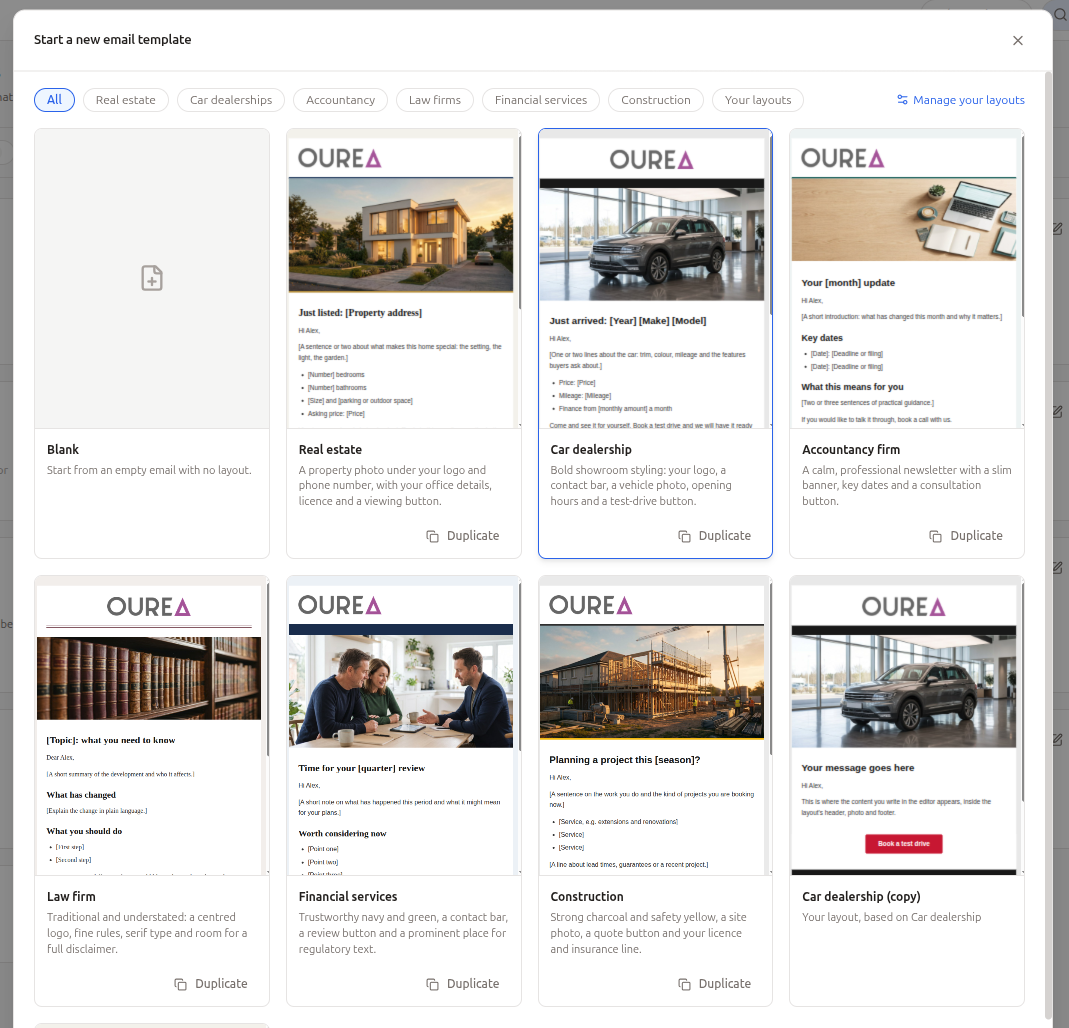
The library currently has layouts for:
- Real estate: a property photo under your logo and phone number, with your office details, licence and a Book a viewing button.
- Car dealerships: bold showroom styling with a contact bar, a vehicle photo, opening hours and a Book a test drive button.
- Accountancy firms: a calm, professional newsletter with a slim banner, key dates and a Book a consultation button.
- Law firms: traditional and understated, with fine rules, serif type and room for a full disclaimer.
- Financial services: a contact bar, a review button and a prominent place for regulatory text.
- Construction: strong charcoal and safety yellow, a site photo, a quote button and your licence and insurance line.
The email template library is a PRO feature.
Before You Start: Your Company Profile
Layouts take your company’s details from your company profile, so it is worth filling it in first. Open Settings and select Company:
- Company name, logo and address: shown in the header and footer of every layout.
- Contact details: phone, email and website.
- Business licence or registration number: for example a licence, regulator or company registration number. Layouts show it in the footer.
- Brand colour: used for the header, links and accents, unless a template picks its own.
- Social links: Facebook, Instagram, LinkedIn, X, YouTube and TikTok.
- Business hours: optional. Tick the days you are open and set the hours, or mark a day as open all day. Layouts that show opening hours fold them into lines such as Mon–Fri: 9am–5:30pm.
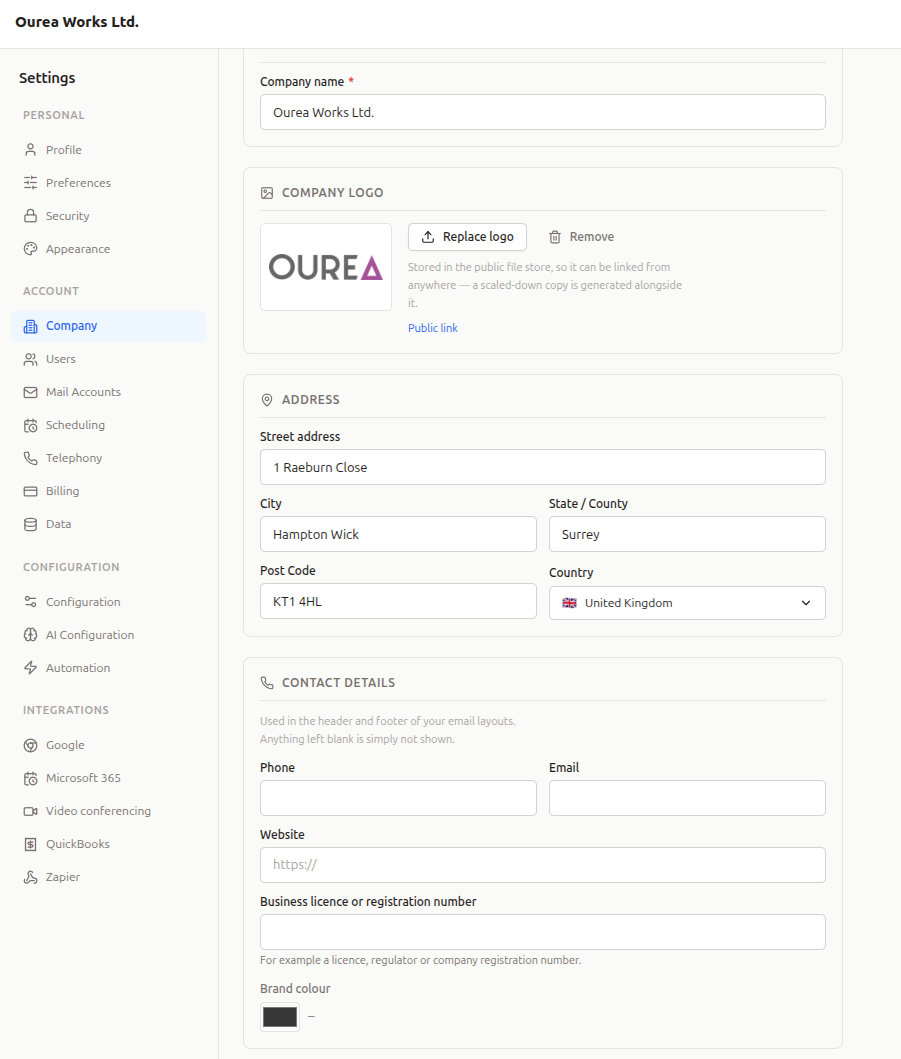
Anything you leave blank is simply not shown: a layout never prints an empty Phone: label. And because layouts read the profile when each email is sent, changing your logo or phone number here updates every template that uses a layout. Nothing needs to be edited twice.
Starting a Template From the Library
Open Content Templates from the menu under your avatar (top right), and click New Template. The library opens with a card for each layout. Every card is drawn with your own company name, logo and details, so you can see exactly how your emails will look before you choose.
Use the buttons along the top to show only one industry. Choose Blank to start an email without a layout.
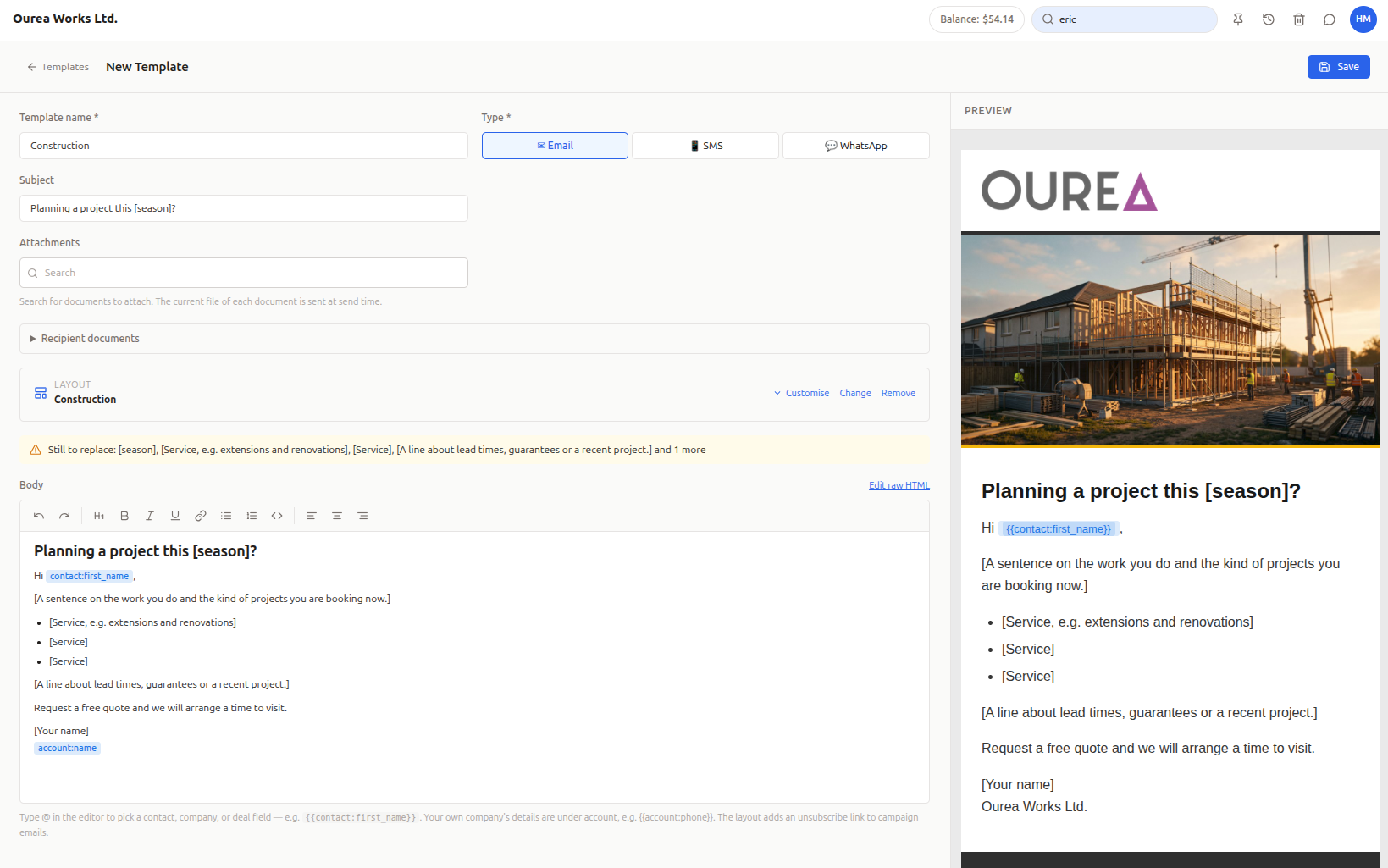
Picking a layout opens a new email template, already filled in with:
- a name and a subject line;
- a starter message written for that industry;
- the layout itself, shown in the preview on the right.
Writing Your Message
The starter message is a starting point, not finished copy. The parts you need to replace are written in square brackets, such as [Property address] or [Price]. While any of them are still in the subject or message, a yellow notice above the editor lists what is left to replace.
Write the message in the editor as you would any email. The layout adds the header, photo, button and footer around it, so there is no need to repeat your contact details or sign-off block in the message itself.
Inserting Your Own Company’s Details
Type @ in the editor to insert a tag. Alongside the contact, company and deal fields, the list includes your own company’s details, under account:
| Tag | Inserts |
|---|---|
| `` | Your company name |
| `` | Your phone number |
| `` | Your email address |
| `` | Your website |
| `` | Your address, on one line |
| `` | Your licence or registration line |
| `` | Your opening hours, on one line |
Note:
accounttags are your company.companytags, such as ``, are the recipient’s company: the company the contact belongs to.
account tags work in every email template, with or without a layout.
Customising the Layout for This Template
Under the template’s details, the Layout bar shows which layout the template uses. Click Customise to change how it looks for this template only:
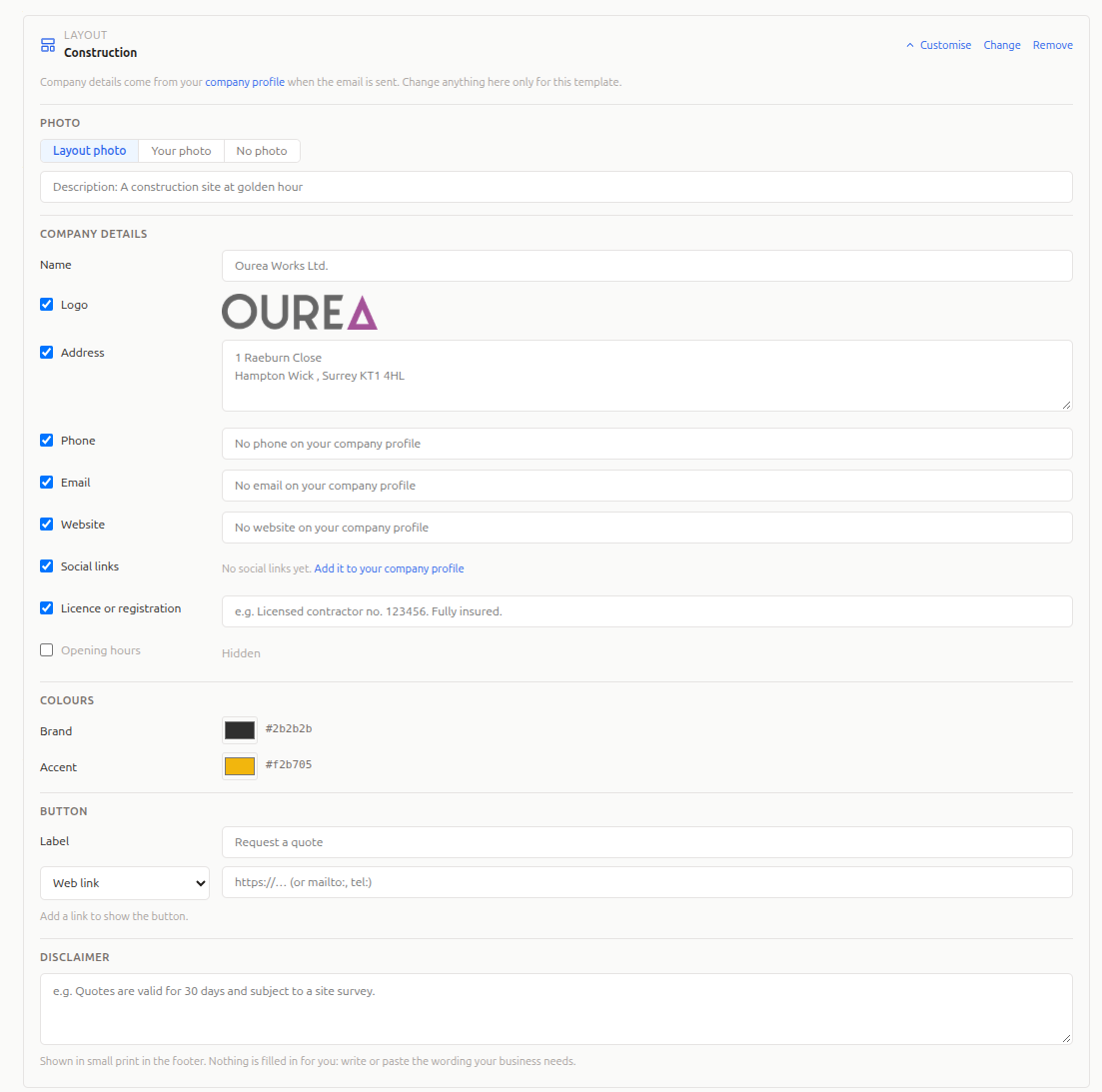
- Photo: keep the Layout photo, use Your photo (upload one, or choose an image you uploaded before), or show No photo. Add a short description of the photo; it is read out by screen readers and shown when images are switched off.
- Company details: tick or untick each detail to show or hide it in this template. Each one shows what your company profile says. Type something different to use it in this template only, for example a branch address or a direct phone line.
- Save to company profile too: when your profile has no phone, email, website or licence line and you type one here, tick this to save it to your company profile as well, so every template gets it.
- Colours: the brand and accent colours for this template. Default goes back to your profile’s brand colour or the layout’s own.
- Button: the button only appears once it has somewhere to go. Choose a Web link (a web address, or a
mailto:ortel:link) or one of your booking pages, and optionally change its label. - Disclaimer: small print for the footer. The box suggests the kind of wording an industry usually needs, but nothing is filled in for you: write or paste the wording your business requires.
The preview on the right updates as you go. It shows the email as it will be sent, with your company’s real details; tags that depend on the recipient, such as ``, are shown highlighted, as they are filled in for each person when the email goes out.
Changing or Removing the Layout
Use Change on the Layout bar to pick a different layout; your message is kept. Remove takes the layout away, and the message is sent on its own. Templates without a layout show a Choose a layout link in the same place.
Templates that use a layout show its name on their card in the Content Templates list.
Sending
A template in a layout is sent in that layout everywhere you use it:
- Campaigns: choose the template in a campaign schedule, as usual. See Campaigns.
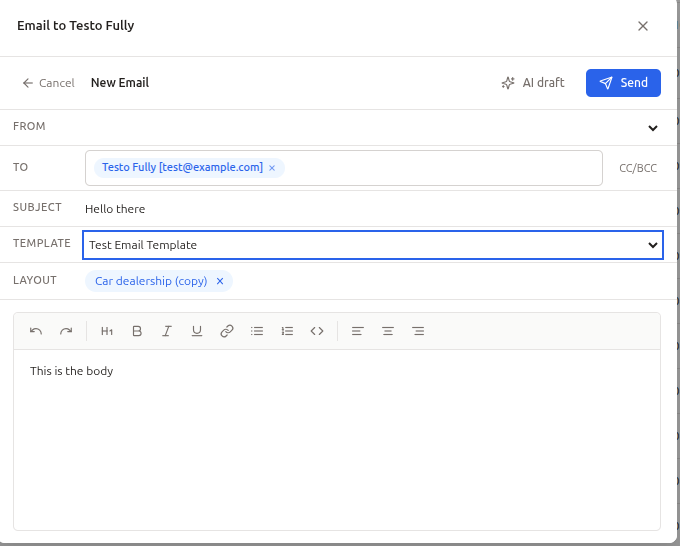
- One-off emails: pick the template in the Template list when writing an email. A Layout chip appears under it; the message you write is sent inside that layout. Click the × on the chip to send without it.
- Emails to a selection of records: emailing several contacts or companies from a list works the same way, with one message per recipient.
Unsubscribe links: in campaign emails, the footer of every library layout includes an unsubscribe link, so you don’t need to add one to the message. If your message already has its own (}), the footer leaves its link out, so there is never a second one.
One-off emails, and emails to a selection of records, carry an unsubscribe link only if you add the } tag to the message yourself; the layout does not add one. As there is no campaign to leave, that link stops all email to the contact (it ticks do not email on their record).
Images: your logo and the photo are linked from FreeCRM’s image servers, as most email services do. Some email programs ask the recipient before showing images from the internet; until they allow it, the photo’s description is shown in its place.
Your Own Layouts
Your account can have its own layouts alongside the library: a copy of a library layout adjusted to your brand, or a design of your own in HTML. Adding and editing them needs the Content Manager role (see below). Anyone on the account can use them in their templates.
From Content Templates, click Email layouts:
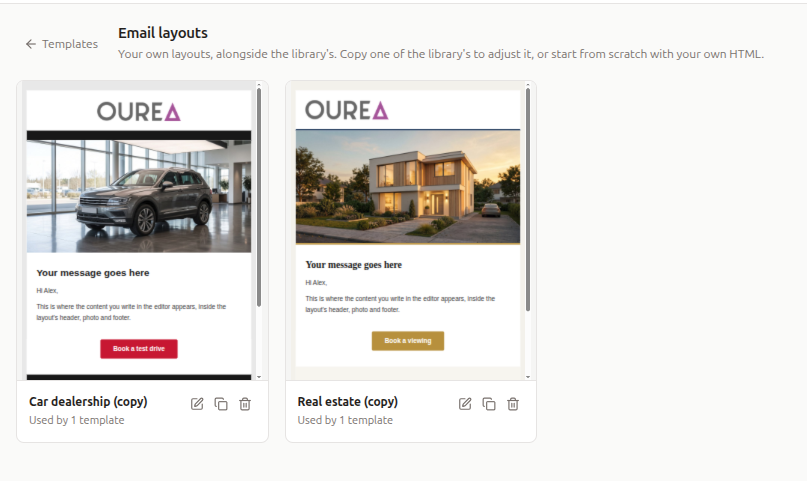
- Copy from library makes your own editable copy of a library layout. Duplicate on a card in the library does the same.
- New layout starts from a simple layout with your logo, the message and a footer.
Your layouts appear under Your layouts in the library, next to the ready-made ones.
Editing a Layout
A layout is edited as HTML, with the email shown on the right exactly as it will look with your company’s details and a sample message.
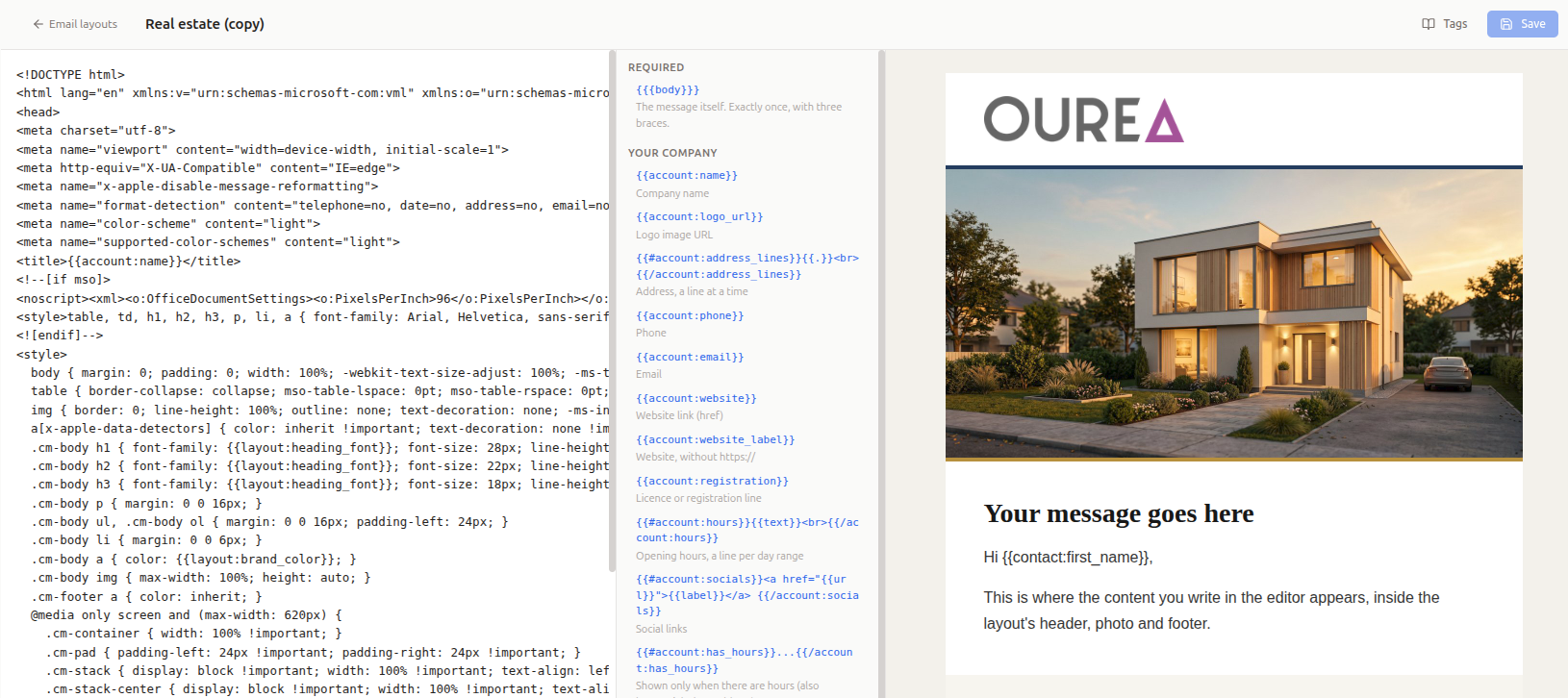
Click Tags for the list of tags a layout can use, and click a tag to insert it at the cursor. The ones you will need most:
| Tag | What it is |
|---|---|
} |
The message itself. Required, exactly once, and with three braces. |
| `` | Your company name |
| `` | The address of your logo image |
... |
Shown only when there is a phone number. The same works for account:email, account:website and the other details. |
<br> |
Your address, a line at a time |
| `` | The template’s photo |
<a href=""></a> |
The button, shown only once it has a link |
| `` | The brand colour, as #rrggbb |
} |
The unsubscribe link |
When a detail is hidden on a template, or missing from your profile, its tag is simply empty and any section around it disappears. The settings offered under **Customise** follow the layout: a layout without a tag has no photo setting.
When you save, FreeCRM checks the layout and lists anything that would stop it working, for example:
}is missing, written with two braces, or appears more than once;- a `` is never closed;
- the HTML contains scripts, frames, forms or event handlers such as
onclick. These are not allowed, and email programs remove them anyway.
A layout that templates are still using can’t be deleted. FreeCRM lists those templates, so you can move them to another layout first.
Tip: email programs are far less forgiving than web browsers. Build layouts from tables with inline styles, and keep them 600 pixels wide. Copying a library layout is the easiest way to start, because they are built that way already.
The Content Manager Role
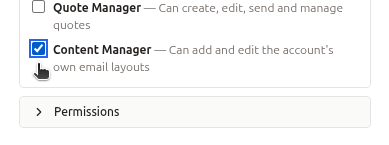
Administrators have the Content Manager role by default. To let someone else add and edit your layouts, open Settings, select Users, open the user, and add Content Manager under Security Groups.
Good to Know
- A content template’s type (email, SMS or WhatsApp) is set when it is created and can’t be changed afterwards. For another channel, create a new template.
- Layouts are for email templates only.
- The library’s layouts and starter messages are in English for now.
- If your account moves off a PRO plan, templates that already use a layout keep being sent in it, but layouts can no longer be chosen or changed.