FreeCRM
Documentation
Landing Pages
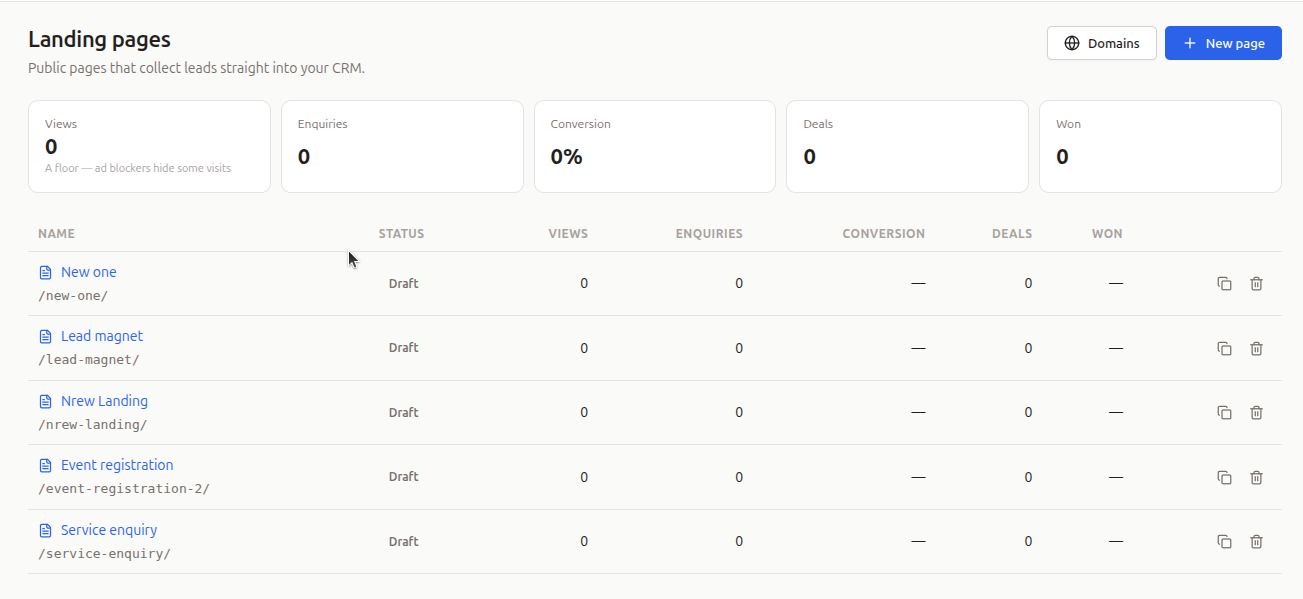
Landing pages are public web pages you build inside FreeCRM, for a campaign, an offer, an event or a service. Their forms feed straight into your CRM: every enquiry creates the same contacts, companies and deals as a form would, and FreeCRM tracks how many people visited, how many got in touch, and how many of those turned into deals.
There is no designing from scratch and no code. A page is a stack of ready-made sections (a headline, a list of benefits, testimonials, a form and so on), styled by a theme you can adjust. Published pages are fast, simple and load no JavaScript.
Landing pages are a PRO feature. Open them from Landing pages in the main menu.
The Landing Pages Screen
The top of the screen sums up the last 30 days across all your pages, each figure compared with the 30 days before:
- Views: visits to your pages. This is a floor rather than an exact count, as ad blockers hide some visits.
- Enquiries: forms sent from your pages. This one is exact.
- Conversion: enquiries as a share of visitors.
- Deals and Won: deals that came from your pages, and the value of those won. See How deals are credited.
A chart shows visitors and enquiries day by day, and a Worth a look panel points out anything that needs attention: a page with plenty of views but no enquiries, a page that was never published, a page that needs republishing, or a domain still waiting for its DNS records.
Below, each page is listed with its address, its status and the same figures. Click a page’s name to edit it. The icons on the right duplicate a page (the copy is a draft named “… copy”) or delete it, which also takes it off the web.
Page statuses
| Status | Meaning |
|---|---|
| Draft | Not published yet. |
| Awaiting review | Published to our domain and waiting for our team to check it. See Publishing. |
| Changes not approved | Our team did not approve the latest version. The version that was live before stays live. |
| Publishing… | Being built. Reload the screen after a moment to see the result. |
| Live | Published and up to date. |
| Live, with unpublished changes | Live, but you have edited it since. Publish again for visitors to see the changes. |
| Needs republishing | Something the page uses was removed: its form was switched off or deleted, or a product or image it shows was deleted. Fix the page and publish again. You are also notified when this happens. |
| Publishing failed | The page could not be built. Whatever was live before keeps serving. |
Creating a Page
Click New page. There are three ways to start:
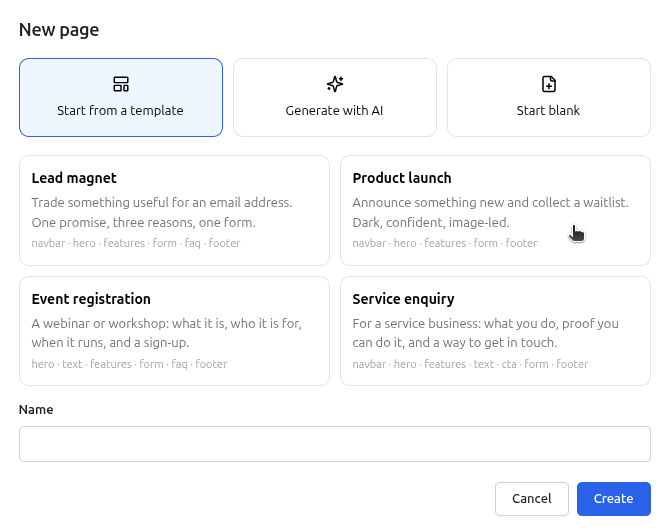
- Start from a template: a designed page with placeholder copy. Pick a card and give the page a name.
- Generate with AI: describe what the page is for, for example “A page offering a free roof survey to homeowners in Kent, with a short form”, and FreeCRM drafts the sections and their copy for you, using your company name and description. This uses your own AI provider account and your own tokens, so it is only available once an AI provider is connected under Settings → AI Configuration (see AI). AI writes the words; it cannot create images.
- Start blank: an empty page.
The templates:
| Template | What it is for |
|---|---|
| Lead magnet | Trade something useful, like a guide or a checklist, for an email address. One promise, three reasons, one form. |
| Product launch | Announce something new and collect a waitlist. Dark, confident and image-led. |
| Event registration | A webinar or workshop: what it is, who it is for, when it runs, and a sign-up. |
| Service enquiry | For a service business: what you do, proof you can do it, and a way to get in touch. |
Template copy contains placeholders in curly brackets, such as {What you do}; replace them all before publishing. No template comes with a form chosen. You pick one of your own (see Forms on a page).
The page’s name is for you; visitors don’t see it. Its web address is made from the name, and can be changed under Settings.
The Editor
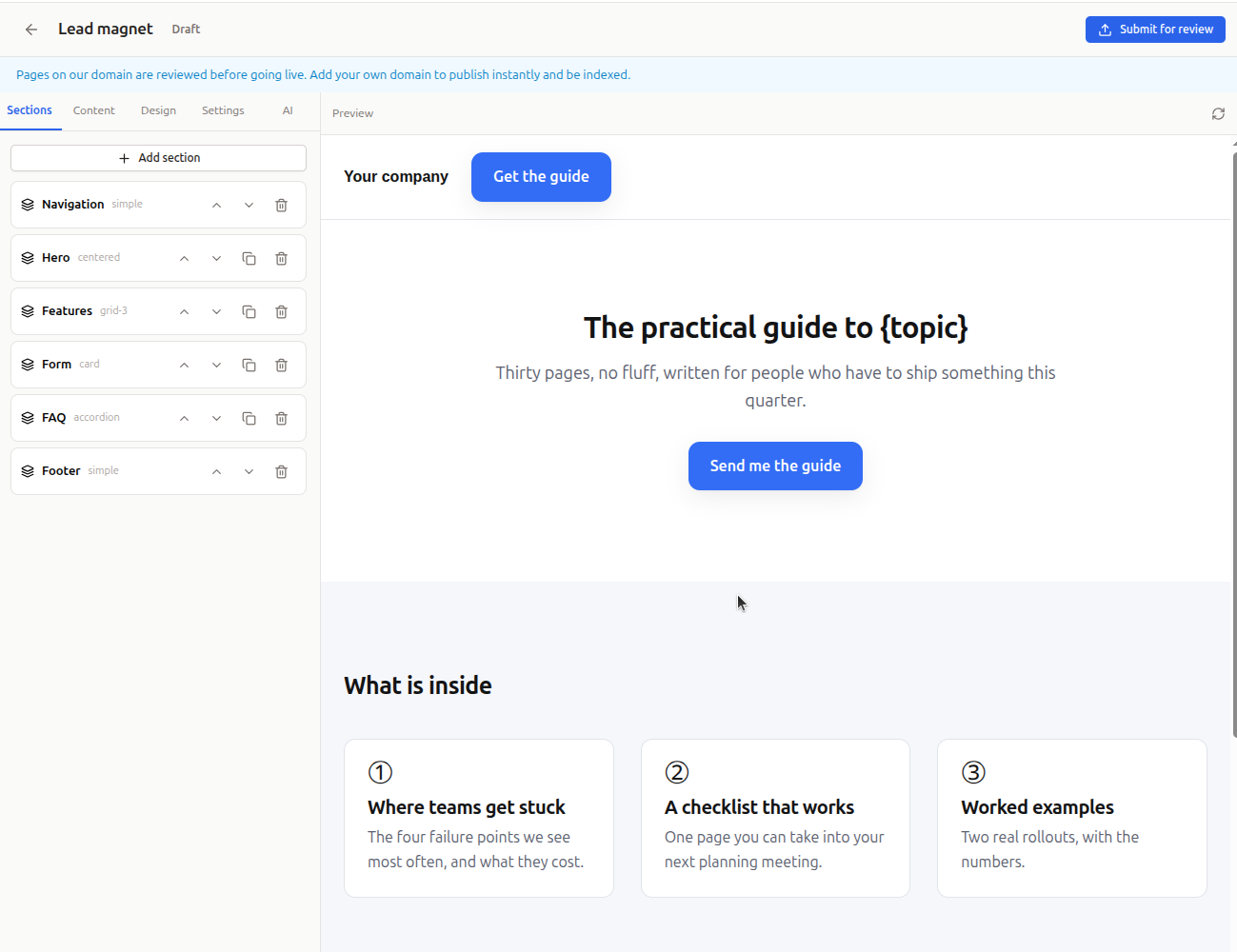
On the right is a preview of the page as it stands. On the left, five tabs: Sections, Content, Design, Settings and AI.
There is no Save button: every change is saved a moment after you make it, and the preview refreshes. If a change cannot be saved, a banner says so and offers Retry. A list item you have added stays unsaved until its required fields are filled in. Use the refresh icon above the preview if it ever falls behind.
Editing never changes what visitors see. Your changes reach the live page when you publish.
Sections
The Sections tab lists the page’s sections from top to bottom. Use the arrows to move a section up or down, and the icons to duplicate or delete it. Deleting takes effect immediately.
Many sections come in more than one layout, for example a headline centred or beside a picture. Select a section, then return to the Sections tab: the layouts available appear under it, and clicking one switches the section over without losing its content.
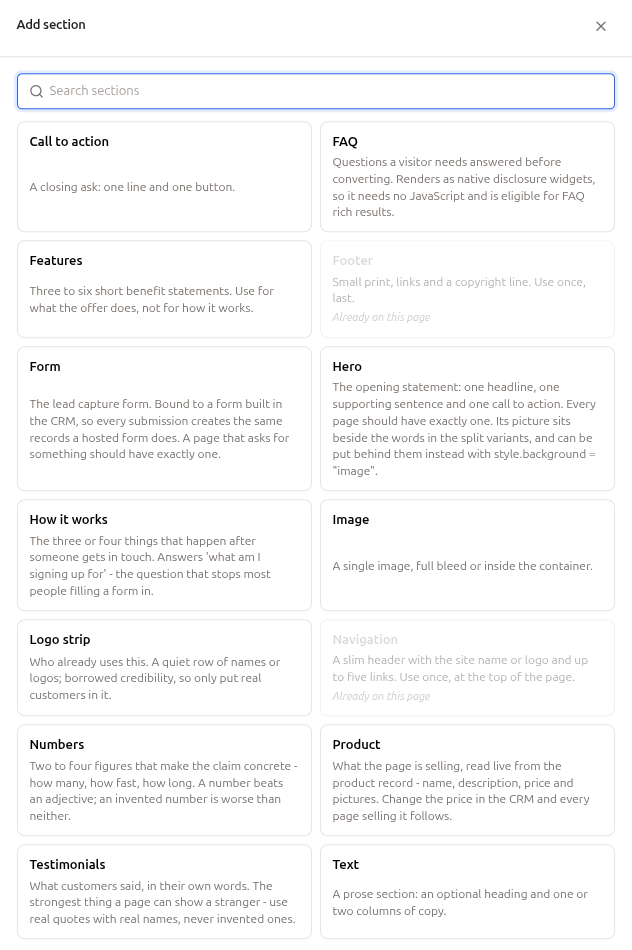
Click Add section to add one. It is placed after the selected section; a navigation bar always goes at the top and a footer at the bottom.
| Section | What it is for |
|---|---|
| Navigation | A slim header with your name or logo, up to five links and a button. One per page, at the top. |
| Hero | The opening statement: one headline, one supporting sentence and one button, with an optional picture beside the words or behind them. Every page should have exactly one. |
| Text | A heading and one or two columns of text. |
| Image | A single picture, inside the page or full width, with a caption. |
| Features | Three to six short benefits: what the offer does for the visitor. |
| Testimonials | What customers said, in their own words, with their names and photos. Use real quotes from real people. |
| Logo strip | A row of names or logos of customers who already use you. |
| Numbers | Two to four figures that make a claim concrete. Only use real ones. |
| How it works | The three or four steps that follow when someone gets in touch. |
| FAQ | The questions a visitor needs answered before getting in touch, as expandable answers. Search engines can show these in their results. |
| Call to action | A closing line and one button. |
| Form | The enquiry form. See Forms on a page. A page that asks for something should have exactly one. |
| Product | What the page is selling, read live from a product in your CRM: name, description, price and pictures. Change the price in the CRM and the page follows. |
| Footer | Small print, links and a copyright line. One per page, at the bottom. |
Content
Select a section to edit its words in the Content tab. Each text box shows how many characters it can take. Lists, such as features, questions or testimonials, have Add and Remove buttons.
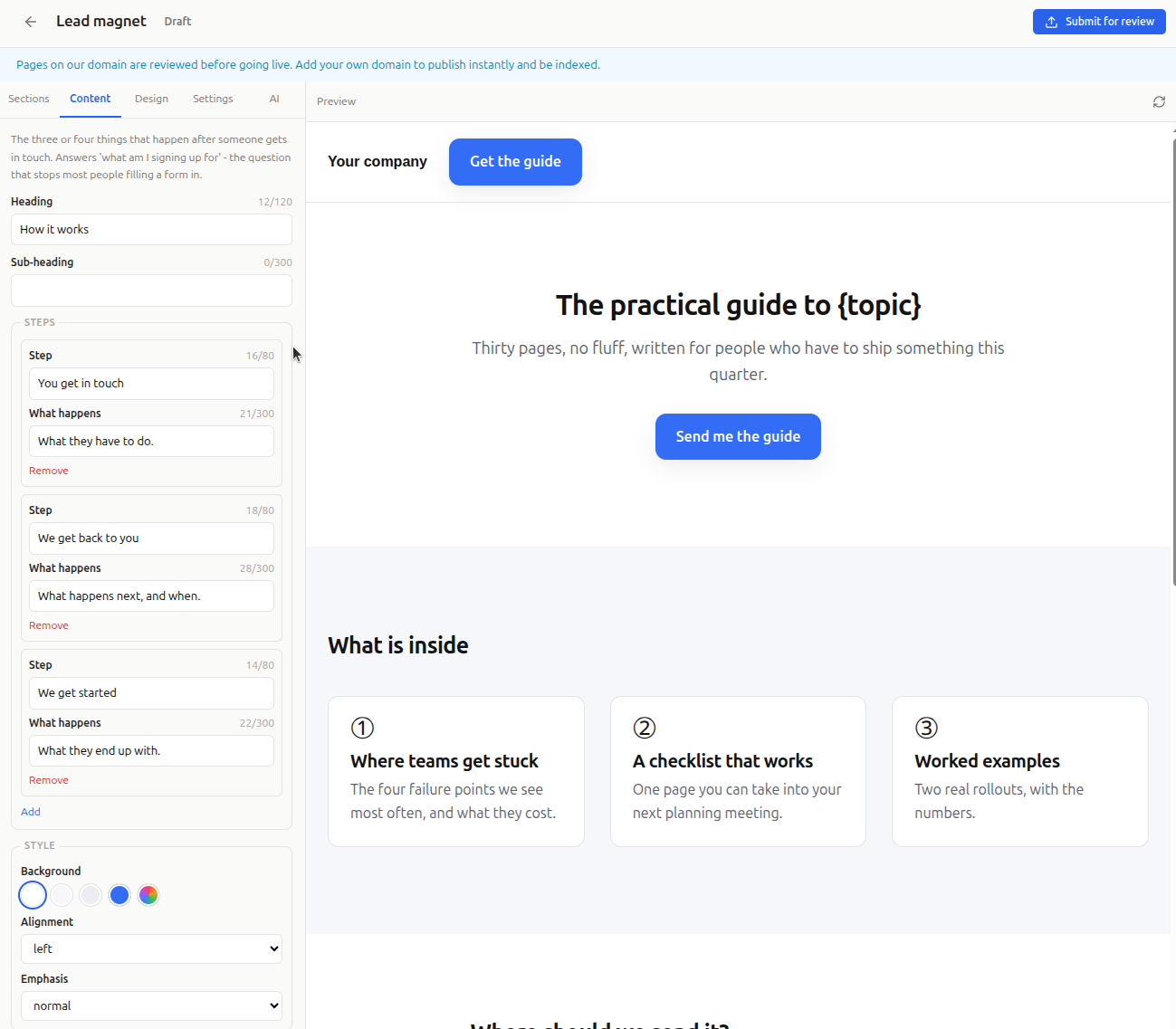
Longer text boxes keep your paragraphs (separate them with a blank line) and line breaks, but no other formatting: text such as **bold** appears exactly as typed.
Buttons and links have a label and a destination. Choose Jump to … to scroll to another section of the page, for example the form, or A web address… to link elsewhere: a web page, an email address (mailto:) or a phone number (tel:). A button with no destination is not shown on the page, and the editor tells you so.
Tip: to let visitors book a meeting, point a button at one of your booking pages.
Most sections also have a Style group:
- Background: the page background, a soft or deeper contrast, the accent colour, or a colour of your own; text switches to black or white to stay readable. A Hero section can also use its own picture as the background, darkened so the words stay readable.
- Alignment: left or centred.
- Emphasis: strong gives the section more room around it.
Images
Picture fields open your Images library, shared by all your pages. Click Upload to add one, or pick one you uploaded before.
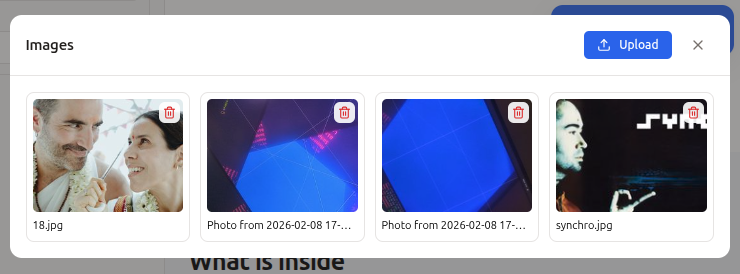
- PNG, JPEG, WebP and GIF images, up to 10 MB each.
- FreeCRM makes smaller copies of each image automatically, so visitors on phones download a small version and large screens a sharp one.
- Uploading the same file again reuses the existing image.
- An image a page is using can’t be deleted from the library; remove it from the page first.
Forms on a page
A Form section shows one of the forms you built under Forms. Choose it in the section’s Form list; only public forms are offered. Every enquiry from the page is saved exactly as if it came through that form, so its field mappings, records and automations all apply.
Because published pages load no JavaScript, a few kinds of form field can’t be used on a landing page: signature, business hours, file upload, custom fields, and phone with country (use a plain phone field instead). The preview shows a note in place of any such field, and the page can’t be published until the form no longer uses it. Hidden fields work as usual; page breaks are ignored, so the whole form shows at once.
The form must be active for the page to be published. If it is switched off later, the page stops being able to take enquiries and is marked Needs republishing.
The form’s own introduction and image are not shown on the page; the section has its own heading and text. Its Outro text is the thank-you message visitors see after sending.
Design
The Design tab sets the look of the whole page:
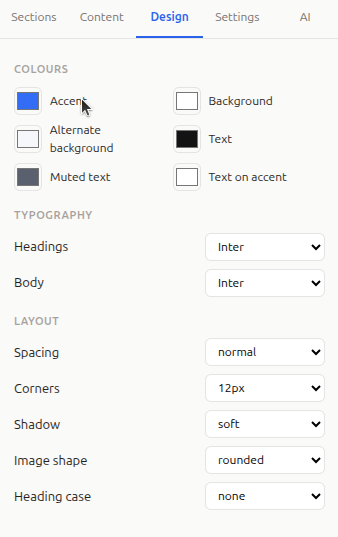
- Colours: Accent, Background, Alternate background, Text, Muted text, and Text on accent (the colour of words on accent-coloured buttons). If any pair of colours may be hard to read, a warning above says how many.
- Typography: the fonts for headings and for body text. These are common fonts, used as they are on the visitor’s device; where a device doesn’t have one, a similar standard font is shown instead.
- Layout: spacing (tight, normal or airy), the roundness of corners, shadows (none, soft or hard), the shape of pictures (as they are, rounded or circular), and whether headings are in capitals.
Settings
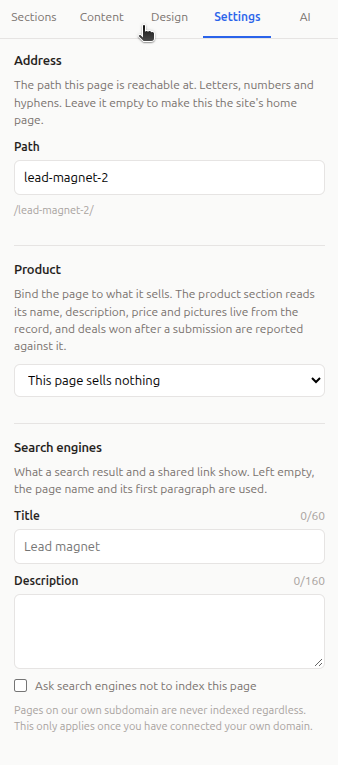
- Address: the path the page is published at, such as
/spring-offer/. Use letters, numbers and hyphens. Leave it empty to make the page the home page of your site. Changing the address of a live page takes the old address down at once; anything linking to it will stop working, and there are no redirects. - Product: the product the page sells, if any. The Product section shows it, enquiries that create a deal add the product to that deal, and deals won after an enquiry are reported against the page.
- Search engines: the title and description a search result or a shared link shows. Left empty, the page name and its first paragraph are used. You can also ask search engines not to index the page. Pages on our own domain are never indexed in any case; this setting matters once you use your own domain.
Changes to settings count as unpublished changes, like changes to content.
AI
With an AI provider connected, the AI tab improves the page for you. Describe what you want, for example “Make the headline more specific about the offer” or “Add a FAQ about pricing”, and click Suggest changes. AI can rewrite any of the copy, add, remove or reorder sections, change their layouts and adjust the design. It can use images already in your library and your active forms, but it cannot create new images; its notes say when one would help.
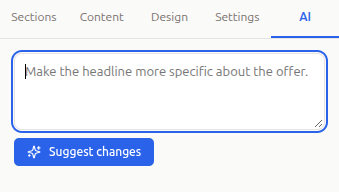
Nothing changes until you review the proposed changes and click Apply; Discard throws them away. Each suggestion uses your own AI provider account and tokens.
Publishing
Click Publish when the page is ready. FreeCRM first checks that the page can work, and lists what needs fixing if it can’t. For example: a form section with no form chosen, a form that is switched off or uses a field landing pages can’t show, an image section with no image, or a button with no link.
What happens next depends on where the page is published:
- On our domain (until you connect your own), the button reads Submit for review. Our team checks pages on our domain before they go live, and you are notified when the page is approved and going live, or if it is not. Every new version is reviewed again. Meanwhile, whatever was live before stays live.
- On your own domain, the page is published straight away, with no review.
After publishing, the status shows Publishing… while the page is built; reload the screen to see it change to Live. View live page, in the editor’s header, opens the published page. Changes you publish later reach visitors within a few minutes.
To take a page off the web, delete it.
What visitors see
A fast, plain web page with no JavaScript and no cookies. The only exception is the “I’m not a robot” box, on forms that use one. Pages on our domain have an address like https://yourcompany.pages.freecrm.com/spring-offer/; on your own domain, https://get.example.com/spring-offer/, or just https://get.example.com/ for the home page.
Your Own Domain
Publishing on a domain you own, such as get.example.com, means pages go live instantly, without review, and search engines can index them. Click Domains on the Landing pages screen.
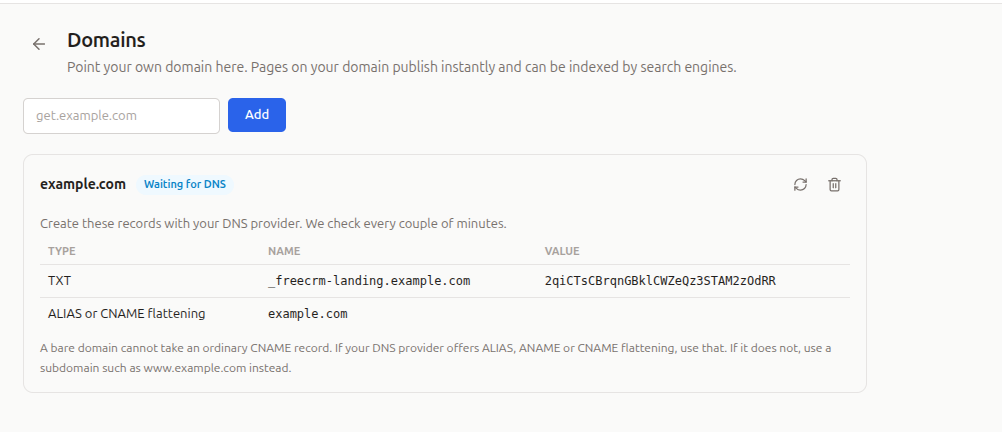
- Type the domain and click Add.
- FreeCRM shows two DNS records to create with whoever manages your domain:
- a TXT record that proves the domain is yours;
- a CNAME record that points the domain at FreeCRM.
- FreeCRM checks for them automatically, every couple of minutes at first and less often over time. Click Refresh to check straight away. Any problem it finds, such as a record not yet visible, is shown under the domain.
When both records are found, the domain shows as Live. It can take a little longer for the secure (https) address to start serving your pages.
A bare domain such as example.com can’t take an ordinary CNAME record. If your DNS provider offers ALIAS, ANAME or CNAME flattening, use that; otherwise use a subdomain such as www.example.com or get.example.com.
Domain statuses: Waiting for DNS, Checking, Live, and Failed, which means the records were still not found after about four days of checks. Refresh still works on a failed domain once the records are in place.
Once a domain is live:
- all your published pages are rebuilt on it, and search engines may index them;
- publishing no longer needs review;
- every page is available on every live domain. If you have more than one, mark the main one with Make primary: search engines are told it is the page’s real address.
Removing a domain stops pages being served on it. If it was your only live domain, pages go back to being reviewed before publishing.
Enquiries
An enquiry from a landing page is saved as a submission of the page’s form, under Forms, and creates the contacts, companies and deals that form is set up to create; your automations run as usual. The contact’s source is set to Landing Page. If the page sells a product and the enquiry creates a deal, the product is added to the deal.
After sending, the visitor stays on the page and sees the form’s Outro text, or “Thank you - we have your details.” if it has none. If something was wrong, for example a required field left empty, a message above the form asks them to correct it and send again.
Protection against spam:
- Turn on the form’s Captcha setting to add an “I’m not a robot” box.
- A hidden trap catches most automated spam without the visitor noticing.
- Each visitor can send a limited number of enquiries a minute.
Note: if the form has Allowed websites set, add your pages’ domains to it, both
*.pages.freecrm.comand any domain of your own, or the “I’m not a robot” check will fail.
How Deals Are Credited
FreeCRM credits a deal to a landing page when:
- the page’s form created the deal;
- the deal includes the page’s product, and the person sent an enquiry from the page in the 90 days before the deal was created; or
- the person who sent the enquiry later appears on a deal. This is a looser link, so it is shown separately: Won notes how much comes from deals it can be sure of.
When more than one page could take credit, the first one the person used gets it. Deals marked private that you cannot see are left out of your figures, and a deal counts as won once it reaches a stage with “won” in its name.
Figures are updated every hour.
Good to Know
- One form per page is the rule of thumb: a page that asks for one thing converts better than a page that asks for several.
- Booking pages: there is no booking section; link a button to one of your booking pages instead.
- Products: when a page shows a product, changing the product in the CRM updates the published page automatically. If a price is also written into the page’s own copy, you are told, as that text won’t update itself.
- Form changes: editing a form’s fields updates live pages that use it automatically.
- Page names can’t be changed after the page is created; the address can.