FreeCRM
Documentation
Connecting your Google account
Connecting a Google account lets FreeCRM work with Gmail, Google Contacts, and Google Calendar from inside the CRM.
In the current UI, open Settings and select Google. The Google area is split into three sections:
- Account — connect or remove the Google account itself.
- Contacts — import or sync contacts after the account is connected.
- Calendar — choose which calendars are synced into the CRM.
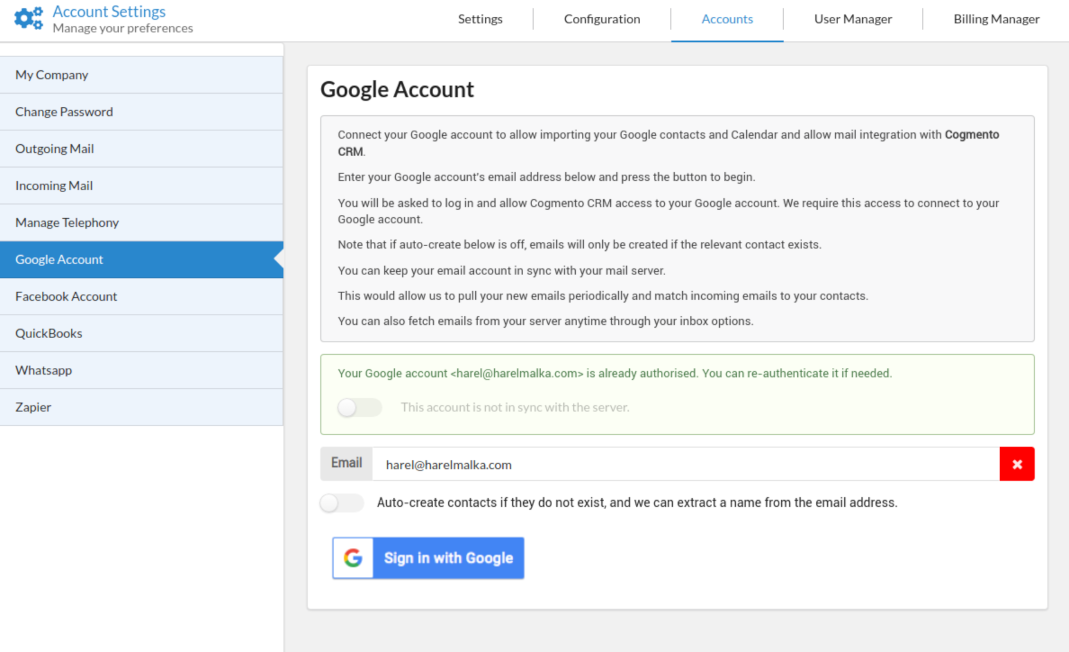
To connect the account:
- Open Settings -> Google -> Account.
- Enter the email address for the Google account you want to use.
- Click Sign in with Google and complete the Google authorization flow.
Once connected, FreeCRM can:
- read your Gmail mailbox for CRM-related email activity;
- send mail through your Google account;
- import or sync Google contacts;
- sync calendar events into the CRM.
When checking for incoming email, FreeCRM will save messages against an existing contact when it finds a matching email address. If you enable Auto Create, FreeCRM can create a new contact when one does not already exist, provided the incoming message includes both a usable name and an email address.
Connecting Google also enables Google Meet links on booking pages, without any further sign-in. See Video Conferencing.
If you use Scheduling and Booking Pages, synced calendar events are counted automatically when FreeCRM decides which slots are available. If you also keep other calendars in Google that are not synced into the CRM, enable the Google free/busy check in the booking page settings so those calendars are taken into account as well.